Showing posts with label tilt cellphone. Show all posts

Thursday, February 7, 2008

The Quality Of Pictures From AT&T Tilt Cellphone

The quality of the pictures you can get from the AT&T cellphone is amazing, if you have the settings right. The optimal setting for the best quality pictures is the maximum that the cell phone can do, which is a 2048x1536 pixel image. The pictures linked in this blog we taken at an even lower setting tan this – they were taken at 1600x1200 pixels.

Here are samples of 2 pictures taken from my phone, one is of our new puppy, and one of what she did to the blinds. Don’t worry, I promise not to turn this into a photo blog; I’m just showing sample images from the phone!

The images that come off the phone are very large, please click the thumbnails I created below to open the full-size “from-the-phone” image in a new window.
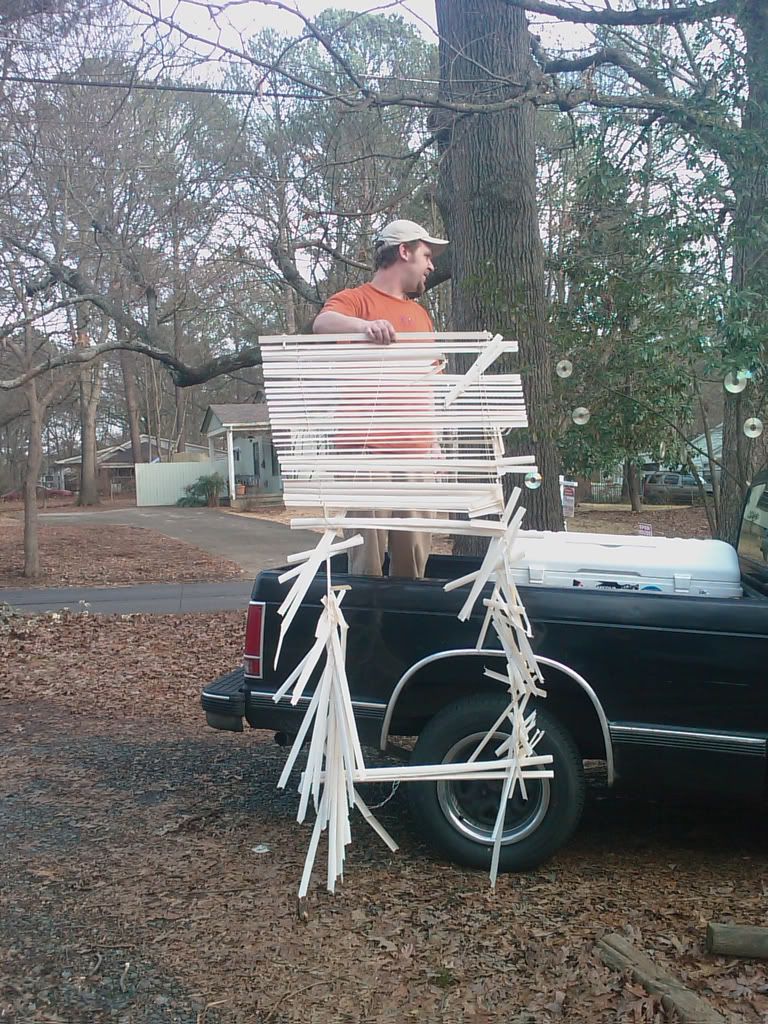


full image


full image

In case you’re wondering how I got these pictures off the phone, I sent them in a multi-media (not text!) message on the phone to my email account. I then saved them from my email to my computer!

In the very-upcoming future I am going to have an Micro SD card on the phone, so I will be able to transfer the images in a different and more efficient way. Stay tuned for an entry on this at a later date!

Wednesday, December 5, 2007

Alarm Clock


So, the alarm clock on the phone is pretty interesting. Instead of having to set it each day I need it, I can set alarms that recur. So, I have 1 alarm st for Monday to Friday to wake me up in the mornings. It's nice because I don't have to remember to turn it off on the weekends.

The phone will let me have 3 different alarms saved. The image associated with this blog is an example of what the "alarm" screen looks like.

Wednesday, November 21, 2007


One of the first things I wanted to do with my new phone was change the default ringtone. So, I went right to the media mall in the browser, and clicked ringtones. I went through and finally picked one. I clicked it, downloaded it, agreed to pay for it, and then clicked the save button.

I then went to play the mp3 file I downloaded (the theme song to the Indiana Jones movies). The file opened right away in Windows Media player, and it played just fine. I clicked the options, and saw no way to set it as a ring tone.

I then went to Settings, and then Sounds and Notifications. I choose the Incoming Call option, clicked ringtones and was presented with a drop down menu of choices. My Indiana Jones MP3 was not listed.

I looked in the help menu that came with the book, and it told me that I needed to copy the MP3 file from My Music to My Documents in order for the song to appear in the choices for ringtones.

Perhaps I should have looked up how to copy and paste files at this point, but I plugged the phone into my laptop, thinking it would be easier to look at it through my laptops File Explorer and copy the file this way. It was not easier! My computer wanted the CD that came with the phone, which was in my car. So, I took the phone away from the computer and went back to the help book.

It turns out, you have to go to Programs, File Explorer, locate the file, click the options menu, and click copy. You then have to navigate to the My Documents folder and click options and click paste. Then, close all that, go back to the Settings, Sounds and Notifications, Ringtones and magically, the Indiana Jones MP3 I downloaded from the Ringtones area on the website was available as an option now.

A little more complicated than I thought!