When you start the camera on the AT&T Tilt Cellphone, there are a lot of different options to choose from, like video, picture, motion, burst etc. Today we are going to talk about the “burst” setting.
In order to change the current picture setting, first notice the top left of the screen, which shows the current setting. This area is highlighted in the image below. To change settings, click the arrows on the right or left and you will be switched to each of the different picture setting options.
When you have the setting on burst, the camera will take 3 pictures in 3 seconds when you click the camera button. You only click the camera button once, and the AT&T Tilt Cellphone takes a “burst” of pictures – 3 to be exact.
It is easy to accidentally change the picture setting when you go to take a picture, and not know that you’ve changed it. I went to view a picture in my photo library, and each picture had 3 copies. I then went to the camera and noticed that I had accidentally changed the picture setting to burst. I hope this is helpful in case anyone is wondering why their AT&T Tilt Cellphone is taking 3 pictures instead of 1.

Tuesday, March 4, 2008
Using the Burst Setting for the Camera on the AT&T Tilt Cellphone

Thursday, February 7, 2008
The Quality Of Pictures From AT&T Tilt Cellphone
The quality of the pictures you can get from the AT&T cellphone is amazing, if you have the settings right. The optimal setting for the best quality pictures is the maximum that the cell phone can do, which is a 2048x1536 pixel image. The pictures linked in this blog we taken at an even lower setting tan this – they were taken at 1600x1200 pixels.
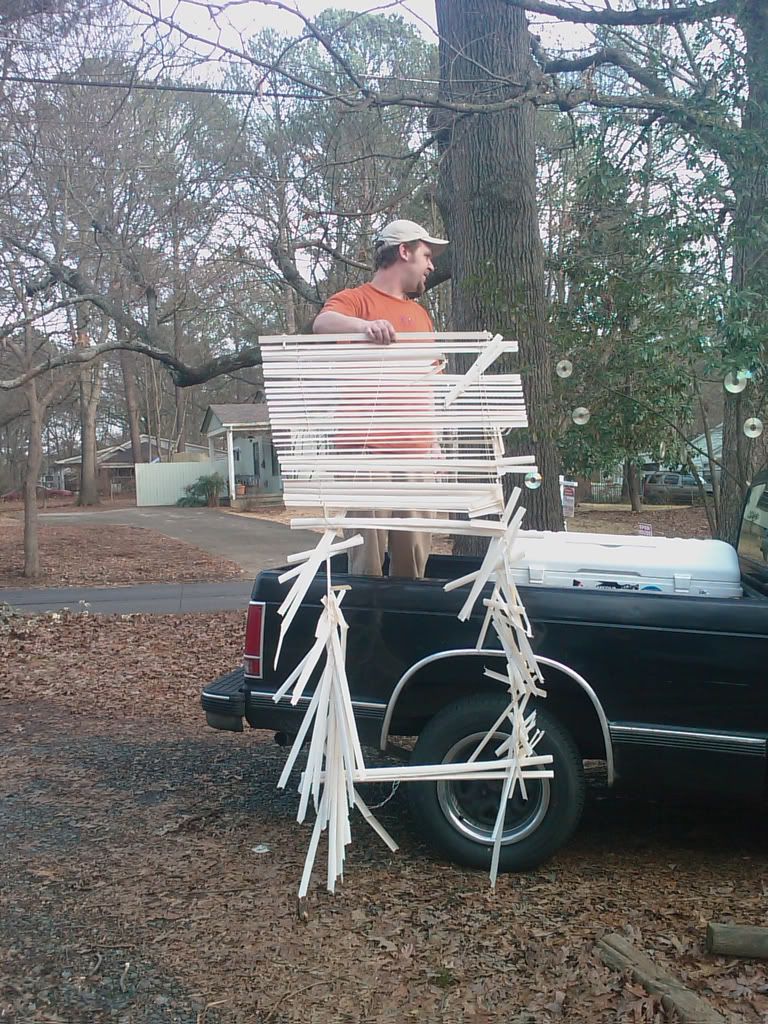
Here are samples of 2 pictures taken from my phone, one is of our new puppy, and one of what she did to the blinds. Don’t worry, I promise not to turn this into a photo blog; I’m just showing sample images from the phone!
The images that come off the phone are very large, please click the thumbnails I created below to open the full-size “from-the-phone” image in a new window.
 |  |
In the very-upcoming future I am going to have an Micro SD card on the phone, so I will be able to transfer the images in a different and more efficient way. Stay tuned for an entry on this at a later date!


