Showing posts with label AT and T Tilt Cell Phone. Show all posts

Thursday, July 31, 2008

AT&T Tilt Cellphone - Free App Download

We found a great, totally free applicatin for the At&T Tilt cellphone. It is called "Live Search" and the link to it is http://www.freewarepocketpc.net/ppc-download-live-search-mobile.html.

Some of it's features are:

  • Local information and navigationFind local businesses and restaurants, and click to call them
  • Turn by turn driving directions
  • Explore interactive maps with satellite imagery
  • View current traffic information and find cheap gas1 stations
  • See movie showtimes by theaters
  • Web search from any Windows Mobile device with Internet access Search the full Web
  • Find the latest news items
  • Search images and photos
  • Get instant answers for weather, stocks, maps, etc
  • Speak your questions—no need to type
  • Browse business listings by categories

If you need help installing a program on your At&T tilt cellphone, be sure to read our blog on that topic!

Also, one helpful note I will tel you - the program installed seamlessly and automatically launched, but did not work initially. I kept getting "can not connect to server errors". I fixed it by opening Internet Explorer, making sure a web page came up, and then launching the Live Search app. It worked just fine!

Tuesday, March 25, 2008

Removing Programs From the AT&T Tilt Cellphone


Recently, we installed the Opera Mobile browser, thinking it would allow us to see Macromedia Flash on the AT&T Tilt Cellphone. Since the current version does not let us view Flash, and is very similar to the Mobile Internet Explorer Browser on the phone, we are going to un-install (or remove) the program.
In order to remove a program that is installed on your phone, first connect the phone to your computer. Upon plugging the phone in, the Microsoft ActiveSynch window should appear. Choose "Tools" the "Add/Remove Programs" as shown in the screenshot below.

Now you will be shown a list of programs installed on the Tilt. Uncheck the box next to any program you want to remove. Since we are removing Opera, you will notice the Opera checkbox is unchecked in the screenshot below. Uncheck the program you wish to remove and then click "OK".


You will then see a message (shown below) that it is removing the program, and then the window will close by itself.


You will not get any more confirmation that the removal is complete, even though it has been removed.

Thursday, March 6, 2008

Lost the CD For the AT&T Tilt Cellphone ?

If you lost your CD for the AT&T tilt cell phone, you can still download the software that you need. It took us quite awhile to track down the link to the Active Synch software, and we are glad to easily provide it to you now. Please click here to download the software needed for the AT&T tilt cellphone.

Software Needed To Connect The AT&T Tilt Cell Phone To My Computer

We misplaced the CD that came with the AT&T Tilt Cellphone so we had to get everything we needed from the internet.

When we first hooked the AT&T Tilt cell phone to the computer, it automatically came up with Windows “Found New Hardware” wizard. That’s the good news. We let Windows search for the driver automatically. Here is a screenshot of it searching.
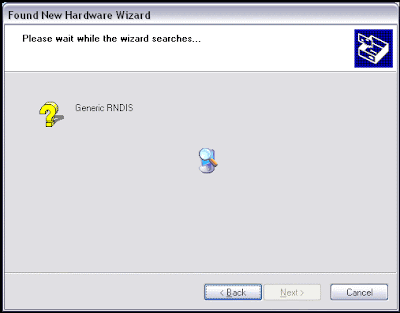


After about 30 seconds, it said it did not find any results. That’s the bad news.

We scoured the Internet for drivers for the AT&T cell phone and for software for the at&t tile cell phone, and the only thing that came up was our website. So we decided that we would thoroughly investigate this for you and have come up with a few links and lots of information that should help save you time.

We searched the AT&T site and their support forums and were not able to find a link to the software we needed. We had several highly intelligent people search Yahoo, Google and MSN for the drivers.

We then went back to the AT&T site, and clicked phone/device support, instead of trying to search for it in the answer center, then we choose the network AT&T and then picked the manufacturer “AT&T”. We then selected the Tilt (Model Number 8925). Then it brought up the phone device support page for the tilt cell phone (which you would think would be a link on the main page, instead of being so buried in the AT&T website).

On this page we saw the most unobvious selection of all – a link to HTC’s Site. We clicked this, and it opened up the HTC Smart Mobility web page. It seems that these are the people who actually make this phone - it is a little unclear. Next we went to select a specific product (please see screenshot this selection was confusing). We selected AT&T as the carrier and then chose the phone (8525/8500).


After making this selection, you are taken to a new page. On this page you need to click “Software Downloads” from the left hand side of the page. A new page will load and then you must scroll down to the very bottom of the page and you will see a link for “download”.

Before we clicked the download link we read that upon installing this all the data (music, pictures, files) on the phone would be deleted. That’s bad news. More bad news is that the site says the installation can take up to 30 minutes and you shouldn’t use your computer of the phone during that time.

We clicked this download link and after the file saved, we went to install it. Here is the screenshot before you start the installation process.


You can see that it say that it says it is going to delete all the data from your phone. We noticed on the website that it said before you begin this process you needed to have an Active Synch connection from your computer to the AT&T tilt cell phone.

We searched for Active Synch and came to this page on Microsoft’s website. We downloaded the Active Synch Software. See the screenshots of the very easy installation process below.

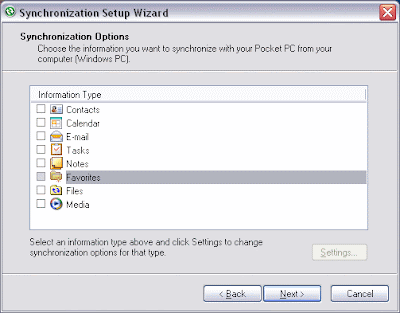


After completing the installation, we see that it says that we are now ready to begin installing programs – which was the overall goal we had. It seems that we do not even need to continue with the installation of the software from HTC that was going to delete all my data.

Connecting My Tilt Cellphone To The Computer

It is very easy to connect the AT&T Tilt cell phone to the computer. Basically, you attach the cable from the phone and plug the USB end into the computer. Here is a screenshot of the connection:

Tuesday, March 4, 2008

Using the Burst Setting for the Camera on the AT&T Tilt Cellphone

When you start the camera on the AT&T Tilt Cellphone, there are a lot of different options to choose from, like video, picture, motion, burst etc. Today we are going to talk about the “burst” setting.

In order to change the current picture setting, first notice the top left of the screen, which shows the current setting. This area is highlighted in the image below. To change settings, click the arrows on the right or left and you will be switched to each of the different picture setting options.


When you have the setting on burst, the camera will take 3 pictures in 3 seconds when you click the camera button. You only click the camera button once, and the AT&T Tilt Cellphone takes a “burst” of pictures – 3 to be exact.

It is easy to accidentally change the picture setting when you go to take a picture, and not know that you’ve changed it. I went to view a picture in my photo library, and each picture had 3 copies. I then went to the camera and noticed that I had accidentally changed the picture setting to burst. I hope this is helpful in case anyone is wondering why their AT&T Tilt Cellphone is taking 3 pictures instead of 1.

Wednesday, January 9, 2008

Do Not Pay For GPS

You do not need to pay the monthly fee for the GPS software (Telenav) from AT&T. There is a great program called GPS Utilities (http://www.efficasoft.com/gpsutilities.html) that sets up the GPS connection ($17.95) (Com 4 and 4800) and free Google maps which integrates with the GPS to track your location, give directions, real time traffic, sattelite views, etc. (http://www.google.com/gmm/gps.html) It is awesome. Also, Windows Mobile 6 is a great improvement over WM5. The performance is so good with the new processer and 3G, I could make international phone calls via Skype (http://www.skype.com/download/skype/mobile/) I like the iPhone UI better, but its lack of Voice Dial, the Limited Keyboard, and lack of 3G made it impossible for me to switch to it from my HTC 8125. I did spend 2 hours at the Apple store trying to talk myself into it. I also recommend Bandswitch (http://commmgrpro.com/_wsn/page2.html) to automatically disconnect your data connection and maximize your battery life. I also removed the PTT software and reclaimed the button for Voice Dial (http://forum.xda-developers.com/showthread.php?p=1570125). I also recommend an alternative to the included dialer because the buttons were too small to use (http://www.paulya.com/Projects/EtDialer/Cabs/PaulyA_E-Ten_Vista.cab) Best phone I have ever had, though I loved my HTC 8125.